
Sign in for the first time
Sign in to your school account, go through the 8 welcome steps and, in «Get more agents», authorise Fipeo so agencies can find you.
Short video without sound. Subtitles are on; you can change the language in the player.
Steps
Open the link in our email, or go to fipeo.net and press Sign in. If your school works with LanguageBookings.com, the page shows the LanguageBookings.com logo: use the same email and password as in your LanguageBookings.com extranet. A personal invitation link works only once.
Don't remember your password? Press Forgot your password? and enter the email of your school account: you get a link to choose a new one (at least 12 characters). Tick Keep me signed in only on your own computer.
The first time, you see Welcome to your extranet. Press Start: 8 short steps to check your school details, your prices for next year, your current offers, the dates you are closed, your bank details, Get more agents and the data processing agreement, and a summary at the end. Press Skip this step or Continue later whenever you like.
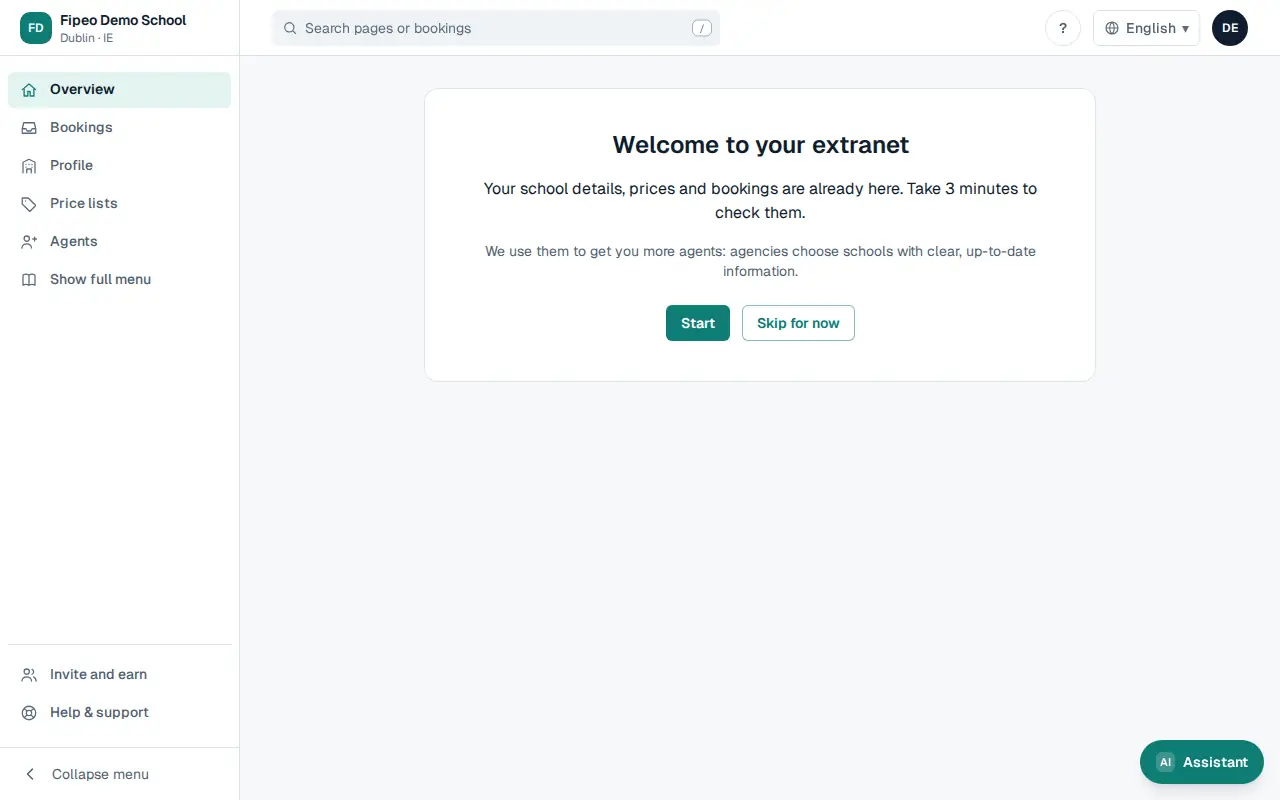
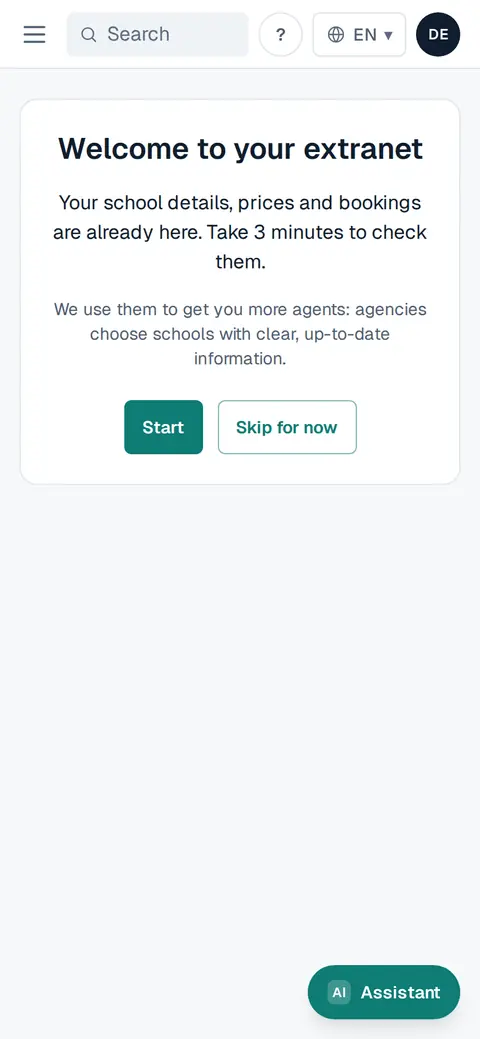
Screenshot: The first time, you see Welcome to your extranet. Press Start: 8 short steps to check your school details, your prices for next year, your current offers, the dates you are closed, your bank details, Get more agents and the data processing agreement, and a summary at the end. Press Skip this step or Continue later whenever you like. In Get more agents, tick the box and press Authorise: agencies on Fipeo can then find your school and quote your courses. Nobody sees your school until you do it, and you can withdraw at any time from Listing & visibility → Publish.
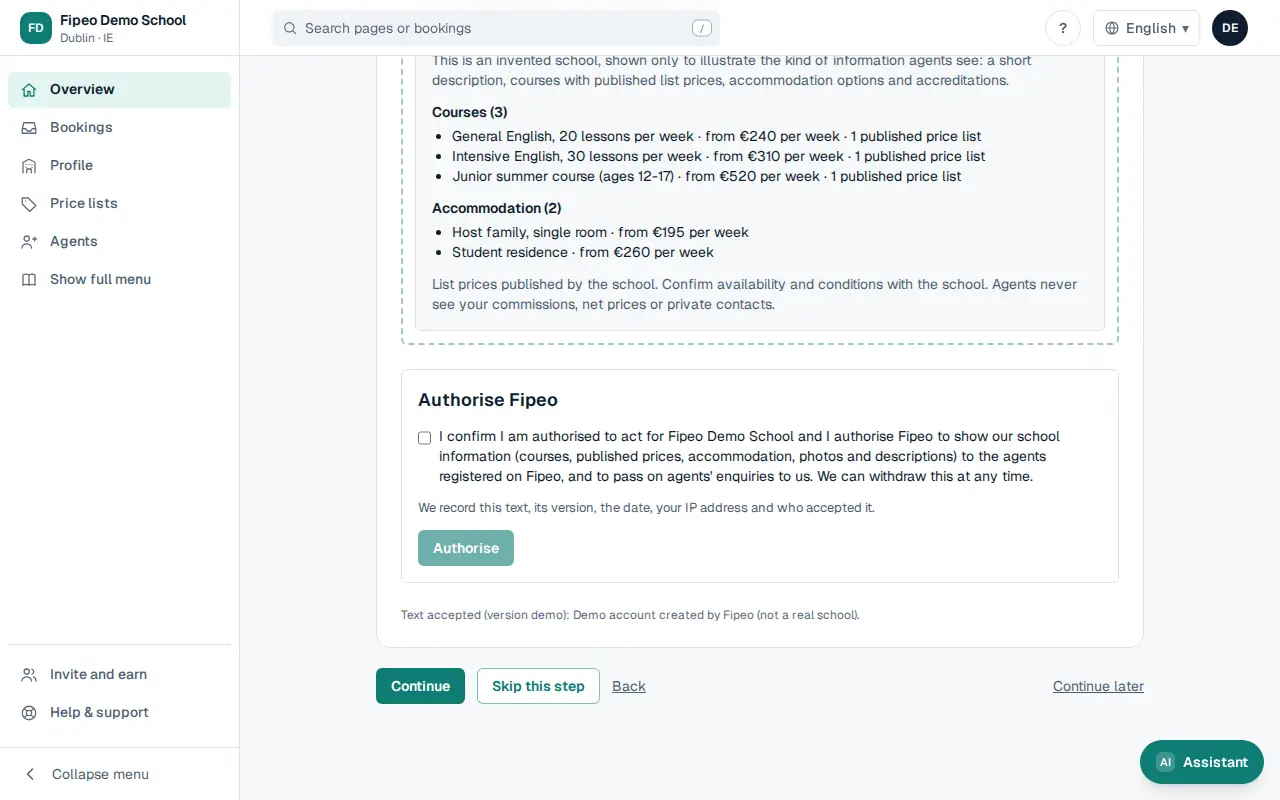
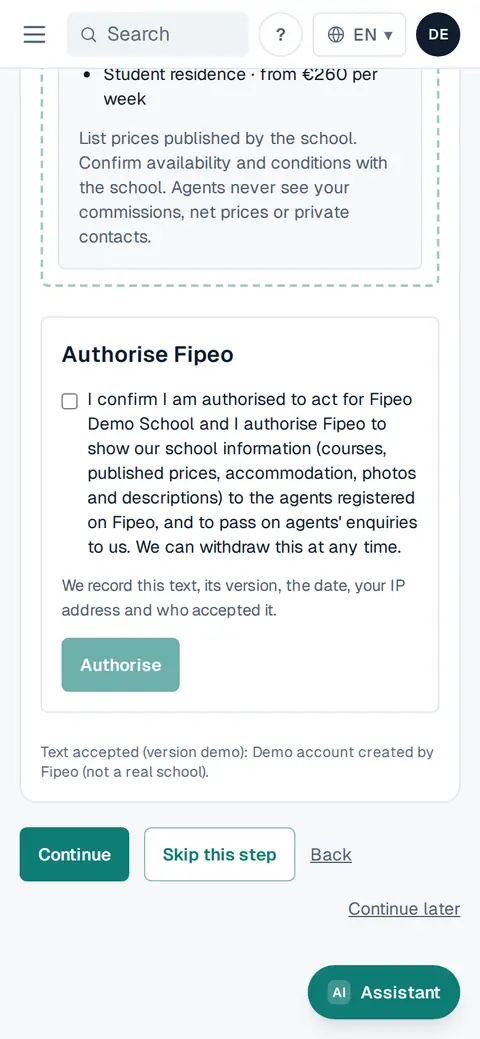
Screenshot: In Get more agents, tick the box and press Authorise: agencies on Fipeo can then find your school and quote your courses. Nobody sees your school until you do it, and you can withdraw at any time from Listing & visibility → Publish. During the first week the menu is shorter: Overview, Profile, Price lists and Agents (and Bookings if you are on LanguageBookings.com). Press Show full menu to see everything. On Overview, a banner takes you back to the step where you stopped. Links in our emails (for example, a new booking) always open the right screen.
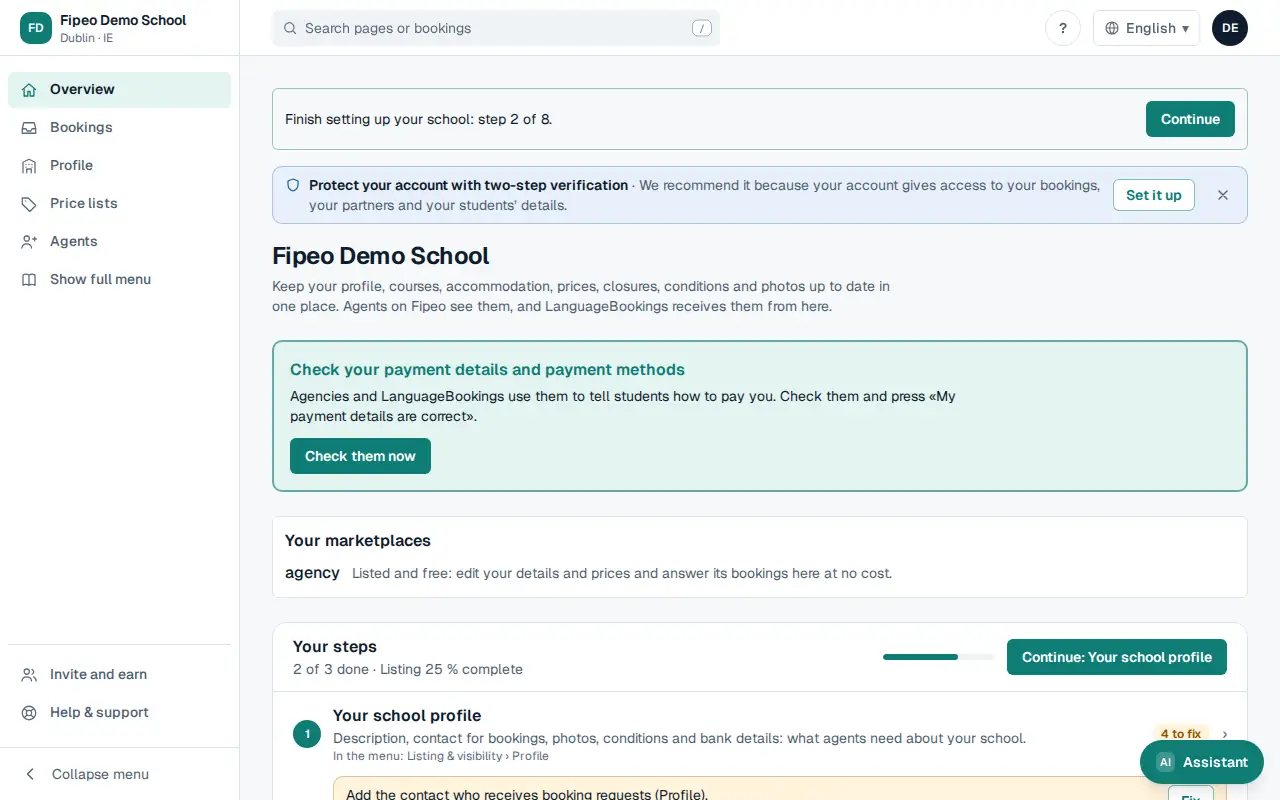
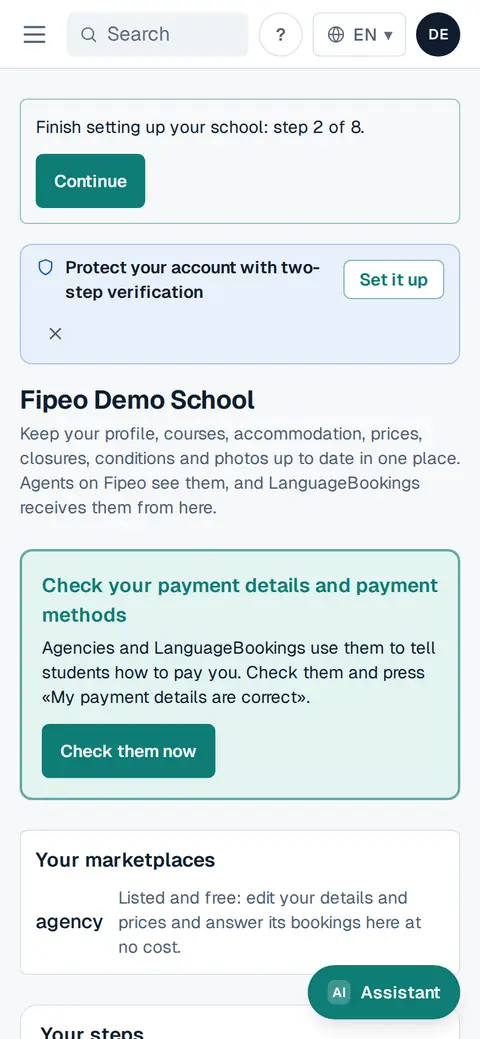
Screenshot: During the first week the menu is shorter: Overview, Profile, Price lists and Agents (and Bookings if you are on LanguageBookings.com). Press Show full menu to see everything. On Overview, a banner takes you back to the step where you stopped. Links in our emails (for example, a new booking) always open the right screen.